Hosted Mender Getting Started on OSX and Raspberry Pi 3

Having various embedded linux devices around (mostly Raspberry Pi’s), and a few client projects dealing with software updates to remote devices, I’ve become interested in fleet management. More specifically, I wanted:

I’ve heard about resin.io before, and while appealing, the control freak in me wanted something with an open server infrastructrure. I’m also not sold on having docker in production embedded devices (while surely being useful for prototyping and experimentation).

There’s the nerves project, mostly focused around the elixir ecosystem. Something I definitely want to check out in more detail, both to learn more about elixir and for simpler embedded projects.

Then I stumbled onto mender. On first glance, it seems perfect. Let’s take a look, shall we?

Burning the initial image

We’re gonna be roughly following along the mender getting started guide while keeping things OSX compatible.

Instead of running our own server infrastructure (which is nice to have as an option, but not required for initial experimenting), we’ll be using hosted mender. That means we will have to inject our hosted mender token into the initial disk image what we will boot the RPi3 from.

Download the Raspberry Pi 3 disk image from https://docs.mender.io/1.3/getting-started/download-test-images . Decompress and change the file extension to make it palatable for hdiutil.

1
2
3
wget https://d1b0l86ne08fsf.cloudfront.net/1.3.1/raspberrypi3/mender-raspberrypi3_1.3.1.sdimg.gz
gunzip mender-raspberrypi3_1.3.1.sdimg.gz
mv mender-raspberrypi3_1.3.1.sdimg mender-raspberrypi3_1.3.1.img

Verify we have a good image

1
hdiutil imageinfo mender-raspberrypi3_1.3.1.img
 1
 2
 3
 4
 5
 6
 7
 8
 9
10
11
12
13
14
15
16
17
18
19
20
21
22
23
24
25
26
27
28
29
30
31
32
33
34
35
36
37
38
39
40
41
42
43
44
45
46
47
48
49
50
51
52
53
54
55
56
57
58
59
60
61
62
63
64
65
66
67
68
Backing Store Information:
	URL: file:///Users/erkkieilonen/projects/learning/mender/mender-raspberrypi3_1.3.1.img
	Name: mender-raspberrypi3_1.3.1.img
	Class Name: CBSDBackingStore
Class Name: CRawDiskImage
Checksum Type: none
Size Information:
	Total Bytes: 624951296
	Compressed Ratio: 1
	Sector Count: 1220608
	Total Non-Empty Bytes: 624951296
	Compressed Bytes: 624951296
	Total Empty Bytes: 0
Format: RAW*
Format Description: raw read/write
Checksum Value:
Properties:
	Encrypted: false
	Kernel Compatible: true
	Checksummed: false
	Software License Agreement: false
	Partitioned: false
	Compressed: no
Segments:
	0: /Users/erkkieilonen/projects/learning/mender/mender-raspberrypi3_1.3.1.img
partitions:
	partition-scheme: fdisk
	block-size: 512
	partitions:
		0:
			partition-name: Master Boot Record
			partition-start: 0
			partition-synthesized: true
			partition-length: 1
			partition-hint: MBR
			boot-code: 0xFAB800108ED0BC00B0B800008ED88EC0FBBE007CBF0006B90002F3A4EA21060000BEBE073804750B83C61081FEFE0775F3EB16B402B001BB007CB2808A74018B4C02CD13EA007C0000EBFE0000000000000000000000000000000000000000000000000000000000000000000000000000000000000000000000000000000000000000000000000000000000000000000000000000000000000000000000000000000000000000000000000000000000000000000000000000000000000000000000000000000000000000000000000000000000000000000000000000000000000000000000000000000000000000000000000000000000000000000000000000000000000000000000000000000000000000000000000000000000000000000000000000000000000000000000000000000000000000000000000000000000000000000000000000000000000000000000000000000000000000000000000000000000000000000000000000000000000000000000000000000000000000000000000000000000000000000000000000000000000000000000000000000000000000000000000000000000000000000000000000000000A31D6D430000
		1:
			partition-name:
			partition-start: 1
			partition-synthesized: true
			partition-length: 24575
			partition-hint: Apple_Free
		2:
			partition-start: 24576
			partition-number: 1
			partition-length: 81920
			partition-hint: Windows_FAT_32
			partition-filesystems:
				FAT16: boot
		3:
			partition-start: 106496
			partition-number: 2
			partition-length: 425984
			partition-hint: Linux_Ext2FS
		4:
			partition-start: 532480
			partition-number: 3
			partition-length: 425984
			partition-hint: Linux_Ext2FS
		5:
			partition-start: 958464
			partition-number: 4
			partition-length: 262144
			partition-hint: Linux_Ext2FS
	burnable: false
Resize limits (per hdiutil resize -limits):
 min 	 cur 	 max
1220608	1220608	1245311712

We can see the boot partition, the primary and secondary root partitions and the data partition. Since the root partitions are using ext2fs, and we’re on OSX, we need to install FUSE for macOS along with FUSE-Ext2 to be able to mount and write to these partitions.

FUSE for macOS

Download the OSX package from https://osxfuse.github.io and follow the instructions to install it. Make sure to tick the checkbox for MacFUSE Compatibility Layer. That’s required for FUSE-Ext2 support.

FUSE-Ext2

This gets a little more complicated. Instead of compiling everything from source, like described here, we’re using the excellent Homebrew package manager to install the dependencies and just compile FUSE-Ext2 itself. (we should probably create a formula for FUSE-Ext2 too …)

Install the dependencies

1
brew install m4 autoconf automake libtool e2fsprogs

Install FUSE-Ext2 itself

1
2
3
4
5
6
7
8
git clone https://github.com/alperakcan/fuse-ext2.git
cd fuse-ext2
./autogen.sh
./configure
CFLAGS="-I /usr/local/include -I $(brew --prefix e2fsprogs)/include" LDFLAGS="-L/usr/local/lib -L$(brew --prefix e2fsprogs)/lib" ./configure
make
sudo make install
cd ..

Attach the original mender image

1
hdiutil attach mender-raspberrypi3_1.3.1.img
1
2
3
4
5
/dev/disk2          	FDisk_partition_scheme
/dev/disk2s1        	Windows_FAT_32                 	/Volumes/boot
/dev/disk2s2        	Linux
/dev/disk2s3        	Linux
/dev/disk2s4        	Linux

Since /dev/disk1 is our OSX boot disk, and we have nothing else mounted, /dev/disk2 is the .img file we just attached. Pay attention to use the correct device in case you have more disks attached.

We will have to mount both of the root partitions and edit some files in there.

1
2
3
4
mkdir $(e2label /dev/disk2s2)
mkdir $(e2label /dev/disk2s3)
mount -t fuse-ext2 -o rw /dev/disk2s2 $(e2label /dev/disk2s2)
mount -t fuse-ext2 -o rw /dev/disk2s3 $(e2label /dev/disk2s3)

Grab your hosted mender token ( top right menu, under My organization) and inject it to the image. Replace <token from hosted mender> with your token.

1
2
3
4
sed -ibak 's/dummy/<token from hosted mender>/' primary/etc/mender/mender.conf
sed -ibak 's/docker.mender.io/hosted.mender.io/' primary/etc/mender/mender.conf
sed -ibak 's/dummy/<token from hosted mender>/' secondary/etc/mender/mender.conf
sed -ibak 's/docker.mender.io/hosted.mender.io/' secondary/etc/mender/mender.conf

Verify the config file contents

1
cat primary/etc/mender/mender.conf
 1
 2
 3
 4
 5
 6
 7
 8
 9
10
{
    "InventoryPollIntervalSeconds": 5,
    "RetryPollIntervalSeconds": 1,
    "RootfsPartA": "/dev/mmcblk0p2",
    "RootfsPartB": "/dev/mmcblk0p3",
    "ServerCertificate": "/etc/mender/server.crt",
    "ServerURL": "https://hosted.mender.io",
    "TenantToken": "<token from hosted mender>",
    "UpdatePollIntervalSeconds": 5
}

Unmount and burn the image and we’re done. Adjust /dev/disk3 to your sdcard device.

1
2
3
4
5
umount primary
umount secondary
hdiutil detach /dev/disk2
sudo dd if=mender-raspberrypi3_1.3.1.img of=/dev/disk3 bs=1m && sudo sync
hdiutil detach /dev/disk3

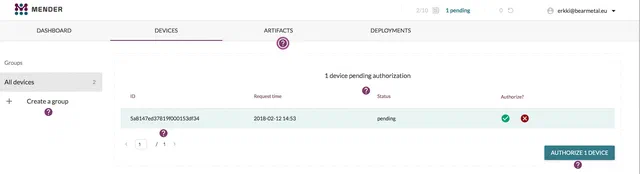
Boot the RPi and check mender dashboard, you should see a new authorization request pop up.

Mender device authorization list